Basics
How to use SpacePlanner on a phone or tablet
SpacePlanner works in the browser on phones and tablets, with no app to install. On a small screen the layout changes so the tools stay within thumb reach.
Everything you draw on a phone is the same plan you see on a computer. Sign in on both to move between them.
The phone layout
Tools sit in a bar at the bottom
The drawing tools run along the bottom of the screen. Swipe the bar sideways to see them all: Select, Wall, Room, Door, Window, Stairs, the Furniture library, then Measure, Dimension, Note, Floor, Electrical, Pan, Roof and more.
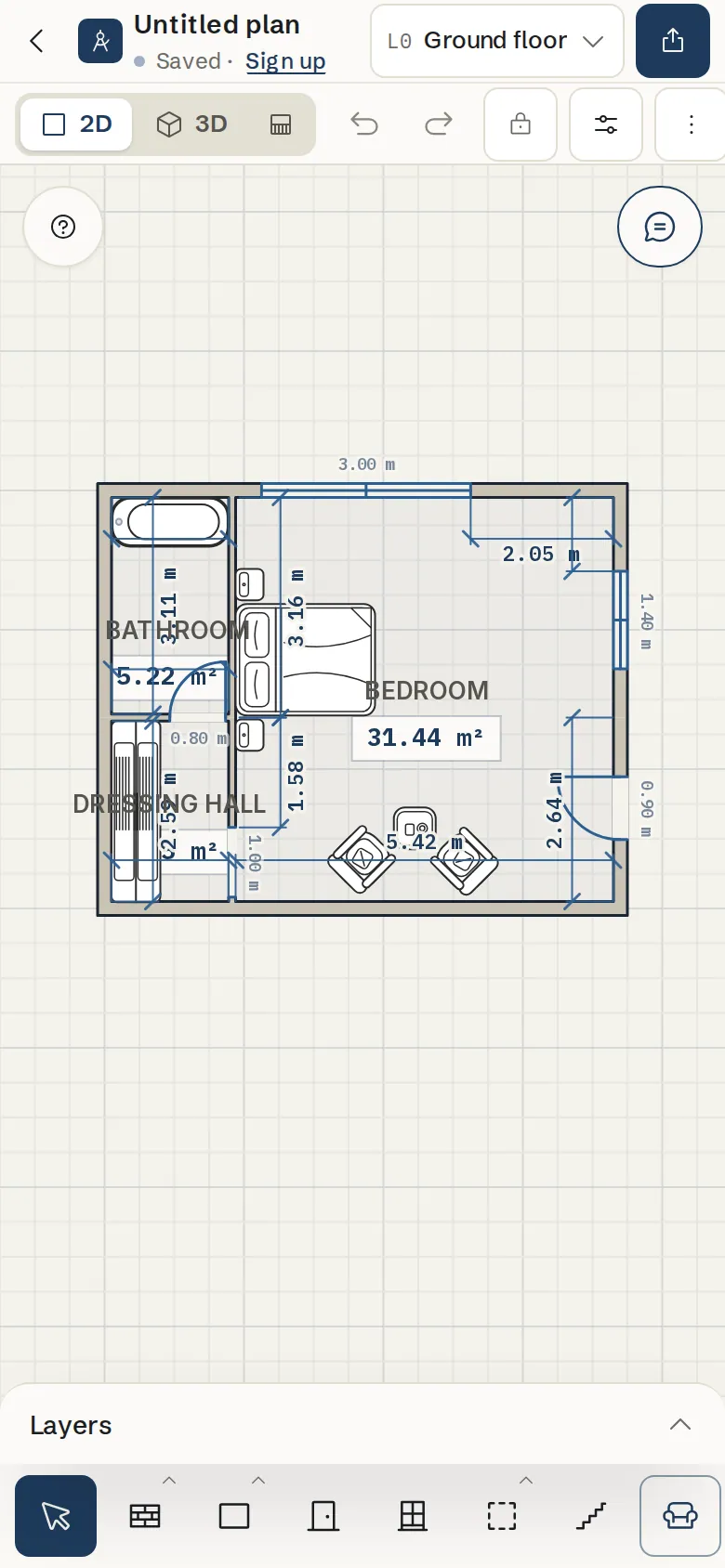
The top bar has two rows
The first row has the plan name, the Floors control and Export. The second row has the 2D, 3D and Elevation switch, Undo and Redo, Import photo, Settings and More.
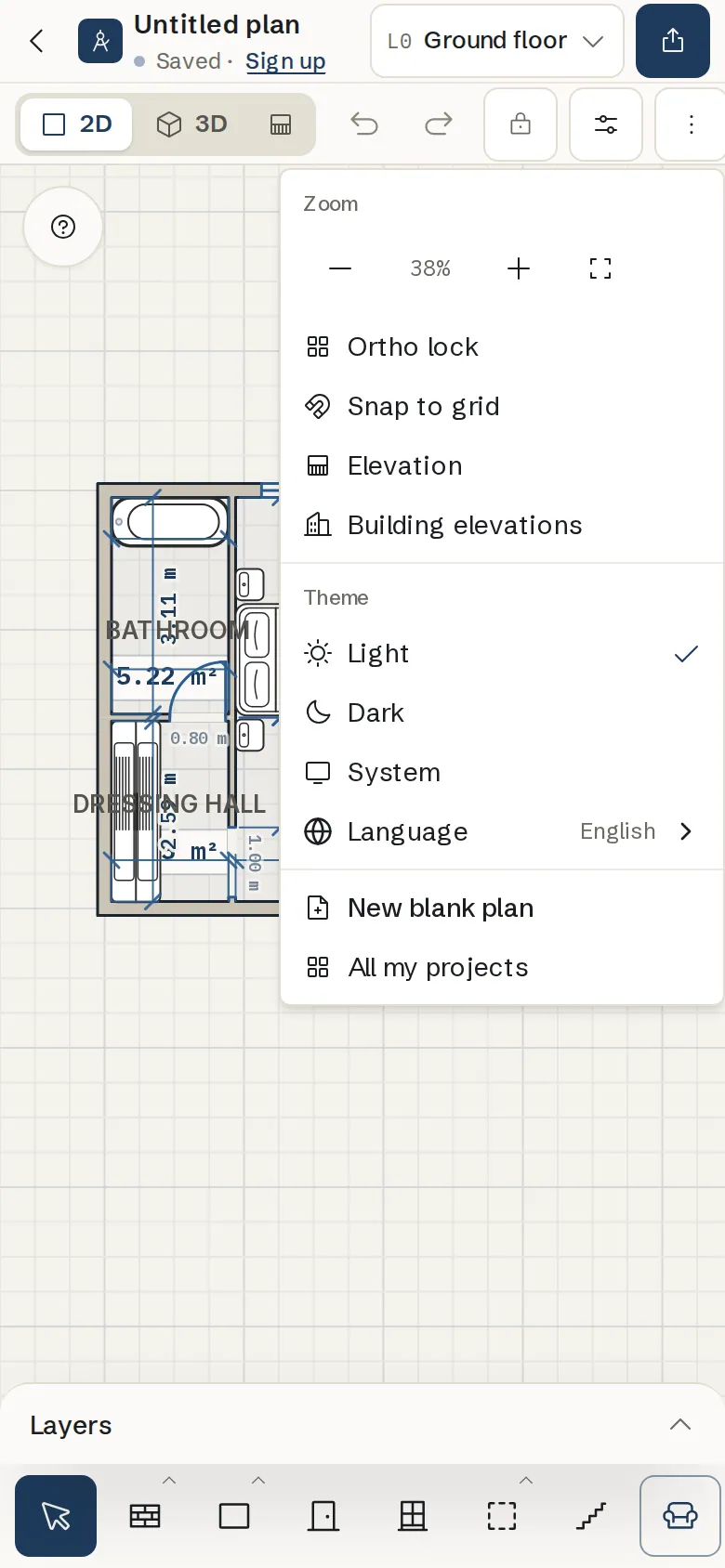
Find zoom and extra options under More
Tap More for Zoom buttons and Fit plan to view, Ortho lock, Snap to grid, Elevation, Building elevations, Version history (signed in), Theme, New blank plan and Recent plans.
Draw with your finger
Move around
With no drawing tool active the plan is in Pan mode: drag with one finger to move it and pinch with two fingers to zoom.
Draw a room
Tap Room in the bottom bar and drag with one finger to draw a rectangular room. Pinch to zoom at any time.
Draw walls
Tap Wall, tap to place the first corner, then tap to chain each next corner. The hint at the bottom tells you what to tap next.
Add doors and windows
Tap Door or Window, pick a style, then tap any wall to drop it in. Keep tapping to add more. Tap a placed door to change its swing.
Edit what you tapped
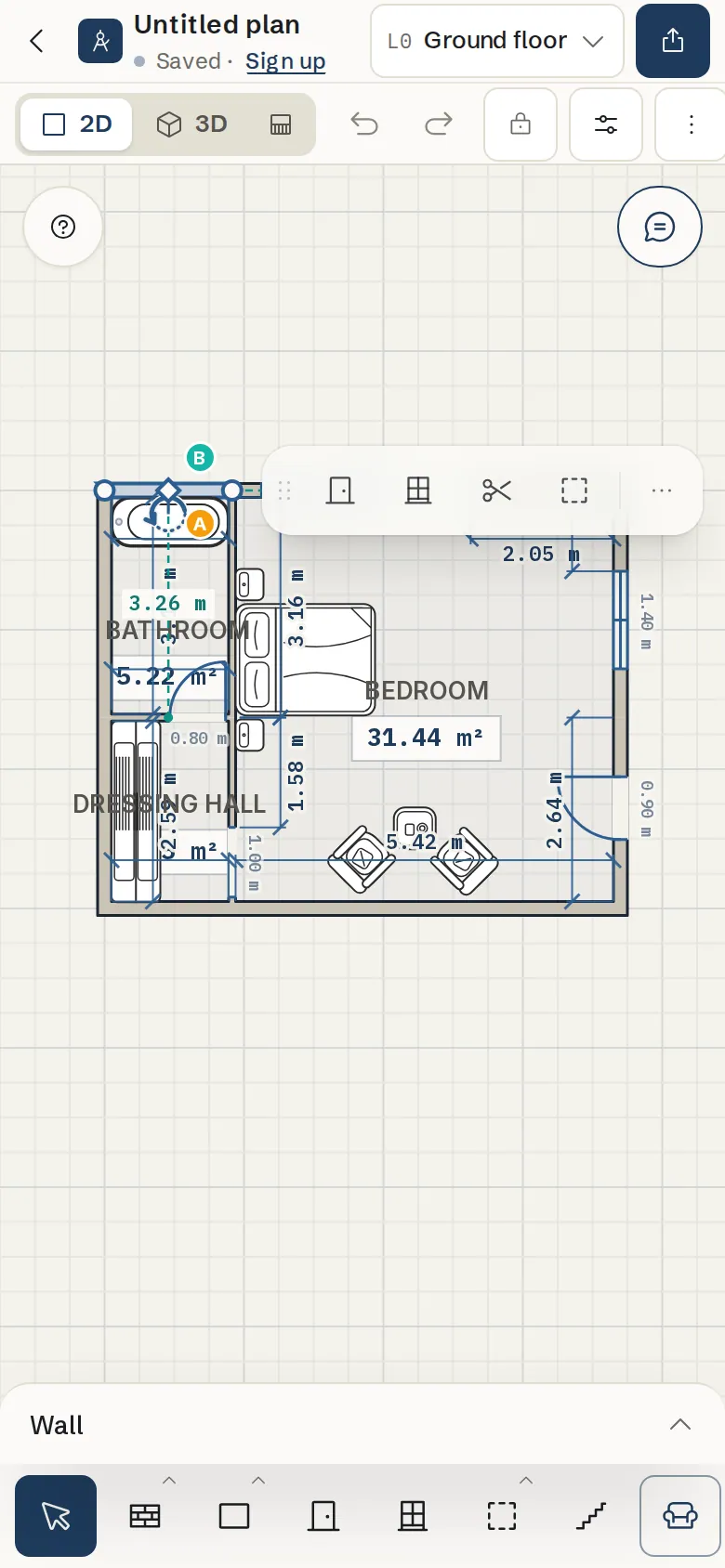
Tap an item to select it. Its settings slide up from the bottom of the screen. Long press for more actions, such as align, lock and reorder.
Layers and panels
Open the Layers sheet
Tap the Layers handle at the bottom of the plan to slide up the layers list. Only one sheet shows at a time, so opening a tool panel moves it aside.
Tips
- Turn your phone sideways for more room on the plan.
- A tablet with a wide screen shows the full desktop layout, with the labelled tool sidebar on the left.
- Typing sizes is often easier than dragging on a small screen. Select a wall and type its length in its panel.
- Your work saves as you go. Sign in to open the same plan later on a computer.
Common problems
- I cannot find a tool
- Swipe the bottom bar sideways. Less common tools, such as Lot, Balcony & terrace and Roof, are at the far end.
- Dragging moves the plan instead of drawing
- No drawing tool is active, so the plan pans. Tap a tool in the bottom bar first. Tapping the active tool again turns it off and goes back to panning.
- The page zooms instead of the plan
- Pinch on the plan itself, not on the top bar or a panel. If the whole page zoomed, pinch back out or rotate the phone to reset it.
- The 3D view is slow on my phone
- Large plans with many furniture models can be heavy on older phones. Hide furniture in 3D under Show in 3D, or view 3D on a computer.
Related topics
- Getting startedOpen the editor, learn what is where on the screen and draw your first room in a few minutes.
- Zoom, pan and fitZoom in and out, move the view around and bring the whole plan back on screen.
- Selecting and editingPick one item or many, then move, copy, group, align, lock or delete them together.
- LayersHide or show furniture, dimensions, areas, wiring, the roof, reference images and the grid.
- Saving and your accountGuest plans save in your browser; a free account keeps every plan, with version history.
Try it on a real plan
Free, in your browser. No sign-up needed to start.