Basics
How to zoom, pan and fit the plan to the screen
The plan is a large sheet you look at through a window. Zooming changes how close you are. Panning slides the sheet around. Neither one changes your drawing.
If your plan ever seems to have disappeared, it is almost always just off screen. Shift+F brings all of it back into view.
Zoom in and out
Use the mouse wheel or trackpad
Scroll the mouse wheel over the plan to zoom in and out around the pointer. On a trackpad, pinch with two fingers to zoom.
Or use the zoom buttons
In the top bar, Zoom out (minus) and Zoom in (plus) sit on either side of the current zoom level, for example 100%. You can zoom from 5% up to 800%.

Fit the whole plan
Click Fit plan to view (the square button to the right of Zoom in) or press Shift+F. The view frames everything on the current floor.
Move the view (pan)
Hold Space and drag
Whatever tool is active, hold Space and drag with the mouse. Let go of Space to carry on with your tool.
Drag with the middle mouse button
Press the scroll wheel down and drag. This works with every tool too.
Scroll with two fingers on a trackpad
A two finger swipe on a trackpad slides the plan. Pinch to zoom.
Or use the Pan tool
Press H or click Pan at the top of the left toolbar. Now a plain drag always moves the view. Press V to go back to Select.
Know where you are
Read the rulers and the status strip
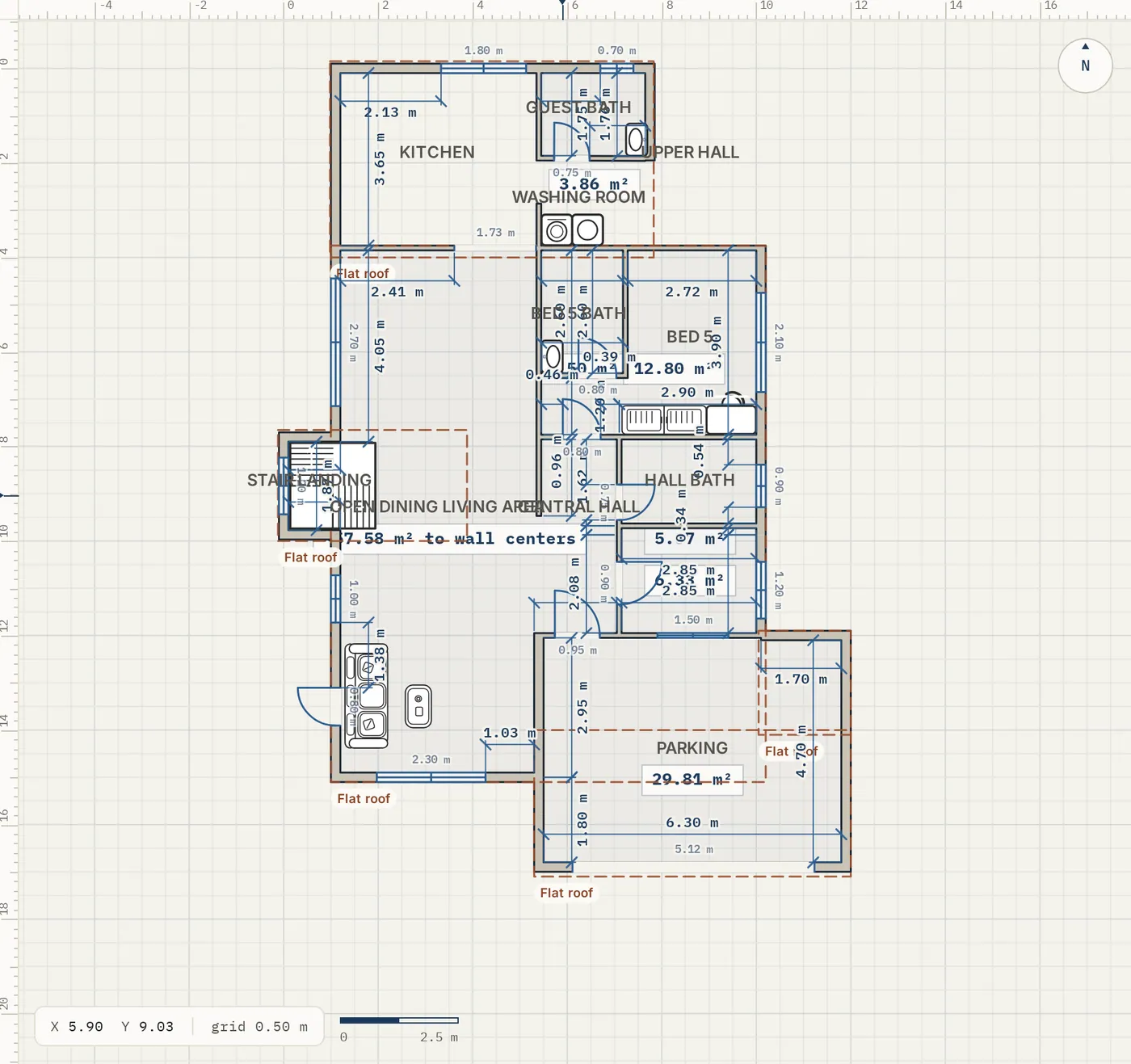
Rulers run along the top and left edge of the plan in your units. The strip at the bottom left shows the pointer position (X and Y), the grid or snap size and a scale bar.
North is up
The round N marker at the top right of the plan shows north. Plans are always drawn with north at the top, so the front of the house (south) is at the bottom.
Tips
- On a phone or tablet, drag with one finger to pan while no drawing tool is active, and pinch to zoom.
- Zooming and panning are not undo steps, so Ctrl+Z never moves the view.
- Each plan remembers its view, so it opens where you left it.
- In 3D, drag to orbit, scroll to zoom in on the pointer and right drag to move around.
Common problems
- My plan disappeared
- Press Shift+F or click Fit plan to view. If nothing appears, check you are on the right floor in the Floors control, and that the Walls and Furniture & Symbols layers are visible.
- Dragging draws a box instead of moving the view
- The Select tool draws a selection box when you drag on empty space. Hold Space while dragging, use the middle mouse button, or switch to Pan with H.
- The trackpad zooms when I want to pan
- Swipe with two fingers to pan and pinch to zoom. A mouse wheel always zooms. If the view jumps, lift your fingers and start the gesture again.
- The plan is tiny after I imported or pasted something far away
- Something sits far from the rest of the plan, so Fit has to zoom out to show both. Press Ctrl+A, look for the outlying item and delete or move it.
Related topics
- Getting startedOpen the editor, learn what is where on the screen and draw your first room in a few minutes.
- Selecting and editingPick one item or many, then move, copy, group, align, lock or delete them together.
- Keyboard shortcutsEvery shortcut for tools, editing, floors, drawing and the 3D walkthrough.
- Phones and tabletsDraw with your finger: the bottom toolbar, pinch to zoom, and panels that slide up from the bottom.
- Grid and snappingMake points land on the grid or on other walls, keep walls square, or place things freely.
Try it on a real plan
Free, in your browser. No sign-up needed to start.