Account & sharing
How to start from a template or an example plan
A template is a ready-made layout you can open and change. It is quicker than starting from an empty grid, and a good way to learn how a plan is put together.
Templates cover apartments, houses, workspaces and outdoor spaces. Example plans are real, detailed plans drawn in SpacePlanner, such as a single floor house, a barndominium and a large villa with a pool and garden.
Open a template
Go to Templates
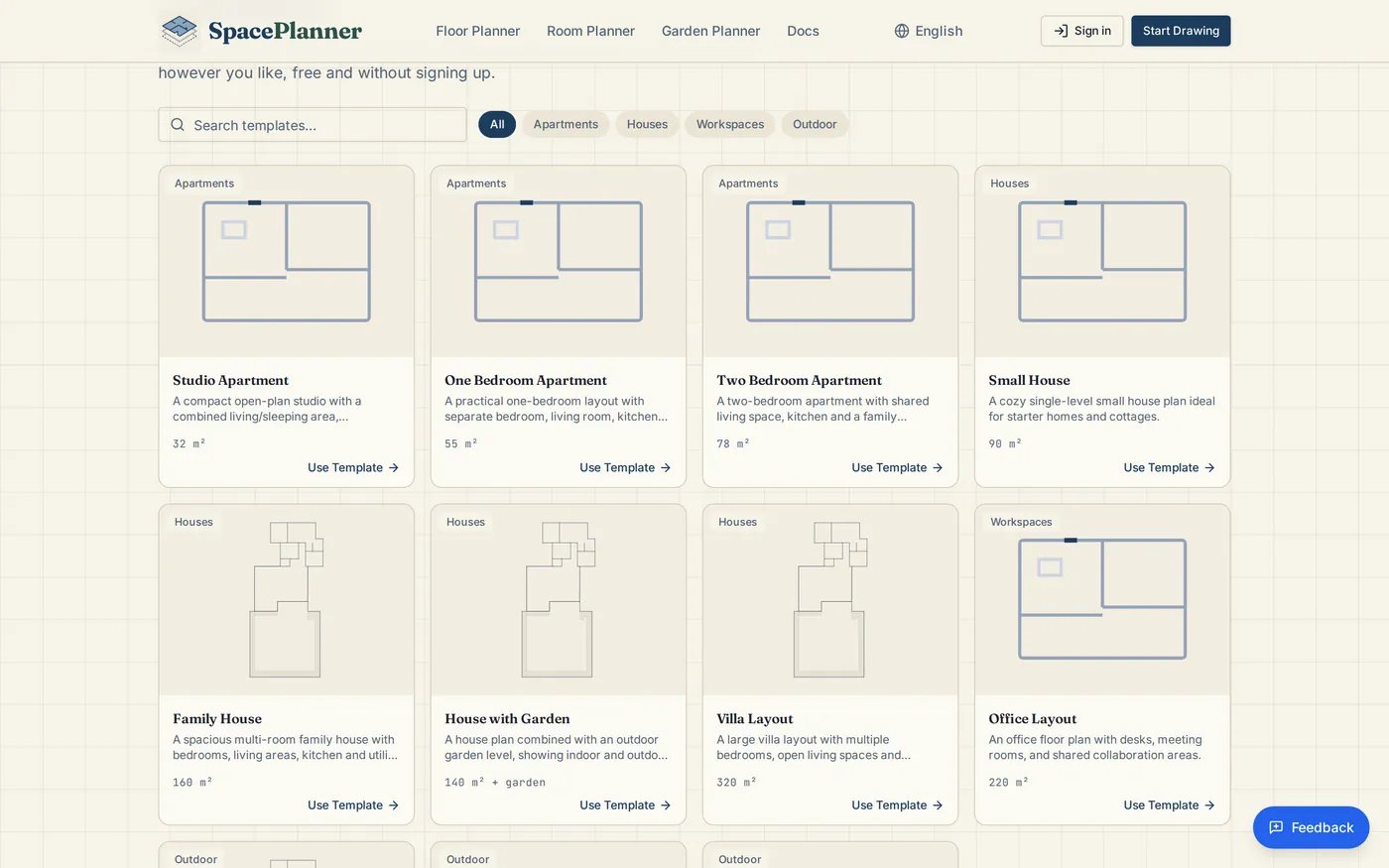
Go to spaceplanner.co/templates, or click Browse all templates on the home page. Filter by Apartments, Houses, Workspaces or Outdoor, or search by name.
Pick one
Click Use Template on a card to open it straight in the editor. Or click the card to read about it first, then click Use Template on its page.
Make it yours
Move walls, change room sizes, swap furniture and rename rooms like any plan. Nothing you change affects the template for anyone else.
Open an example plan
Find an example
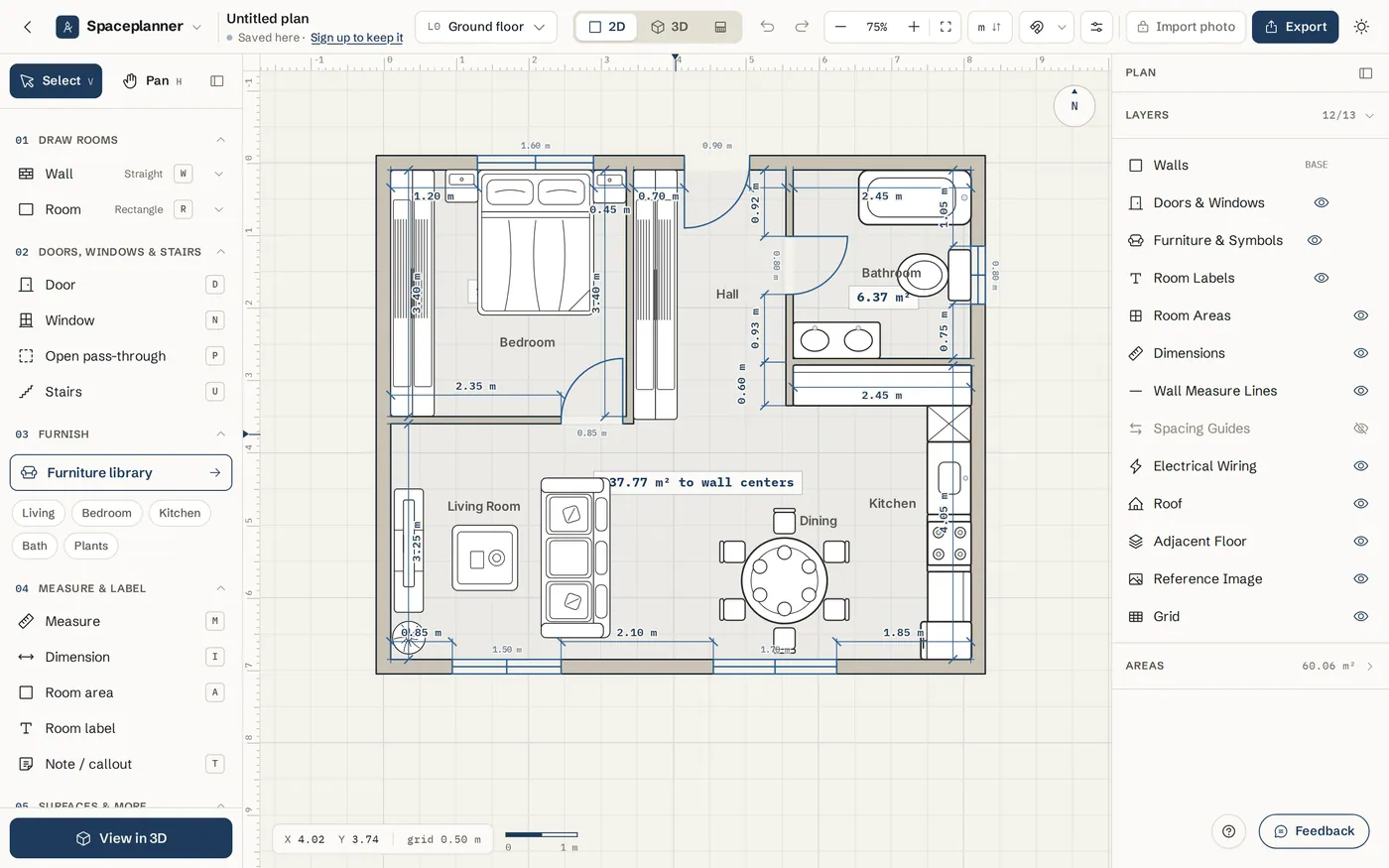
Example plans open from the house plan and floor plan pages on the site, with the Open Example Plan button. They open as your own editable copy.
Explore it
Examples are full plans with furniture, finishes and, on the villa, a roof and a pool. Click 3D to walk around them, and open Export to see how a finished plan prints.
Keep your version
Reload safely
Once you draw on a template, your version wins when you reload the page. You see Picked up where you left off. Click Start fresh in that message to go back to the clean template.
Save it to your account
As a guest, your edited template is kept in this browser. Click Sign up to keep it to move it into a free account.
Tips
- As a guest, this browser keeps one plan. Opening a different template replaces the current one, so sign up first if you want to keep what you drew.
- Some templates and examples open in feet and inches. Change the units with the units button in the top bar.
- Use a template as a reference: open it in one tab and draw your own plan in your account in another.
Common problems
- I opened a template and got my old drawing instead
- Your earlier drawing in this browser was kept. Click Start fresh in the Picked up where you left off message to load the clean template.
- Opening a template replaced my plan
- A guest browser holds one plan. Sign up to keep several plans. If you were signed in, your saved plans are still in My plans.
- The template is in feet and I use meters
- Click the units button in the top bar and choose Meters or Centimeters. Sizes stay the same, only the numbers change.
Related topics
- Getting startedOpen the editor, learn what is where on the screen and draw your first room in a few minutes.
- Saving and your accountGuest plans save in your browser; a free account keeps every plan, with version history.
- Units (cm, m, ft-in)Choose metric or imperial units for the whole plan and type lengths in any format.
- Sharing and collaborationSend a link that opens an editable copy, or share an exported PDF or image.
- 3D view & walkthroughSee the same plan in live 3D, light it, look inside, save views, walk through it and turn a view into a realistic photo.
Try it on a real plan
Free, in your browser. No sign-up needed to start.