Basics
How to change units: centimeters, meters, feet and inches
Units decide how every length and area is shown and typed: on the plan, in the panels, in 3D and in exports. They apply to the whole project, every floor included.
Changing units never resizes anything. A 4 m wall stays 4 m long and simply reads 13' 1 1/2" in feet and inches.
New plans start in feet and inches in the United States, Liberia and Myanmar, and in centimeters everywhere else. You can switch at any time.
Change the units
Open the units menu
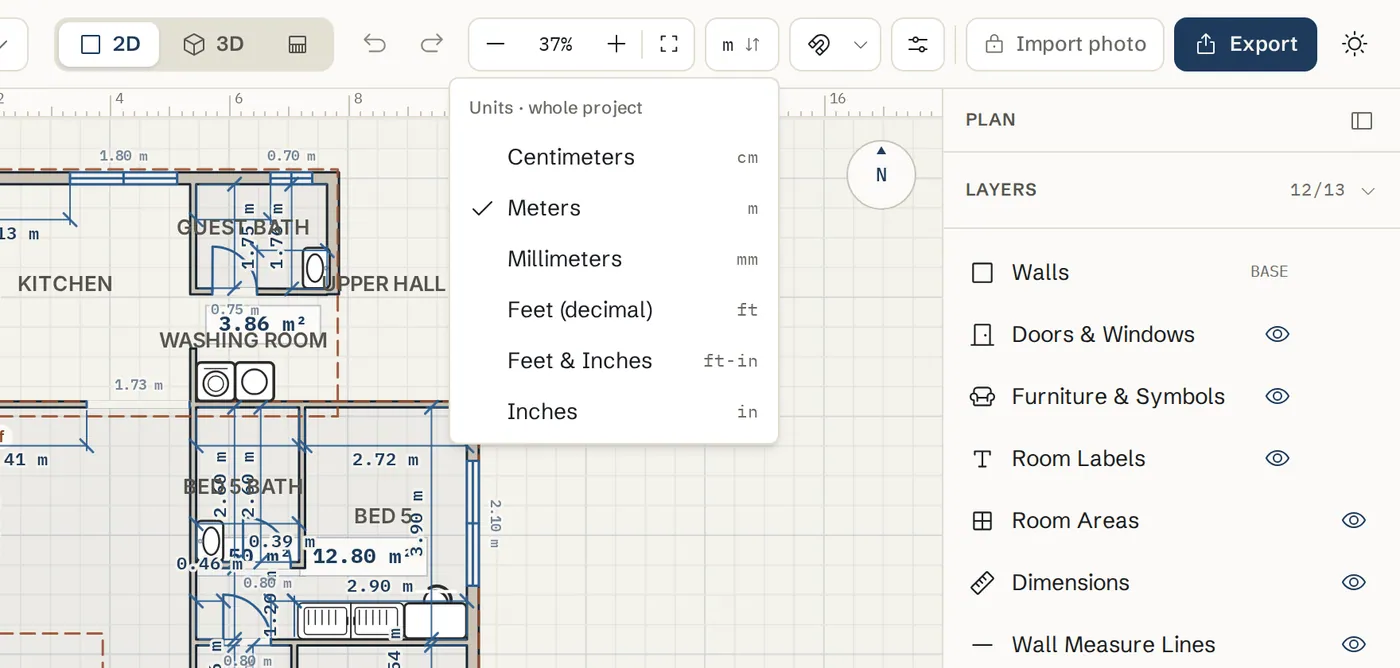
In the top bar, click the units button. It shows the current unit, for example cm or ft-in. The menu is headed Units · whole project.
Pick a unit
Choose Centimeters, Meters or Millimeters for metric, or Feet (decimal), Feet & Inches or Inches for imperial. The plan updates at once.
Or use Settings
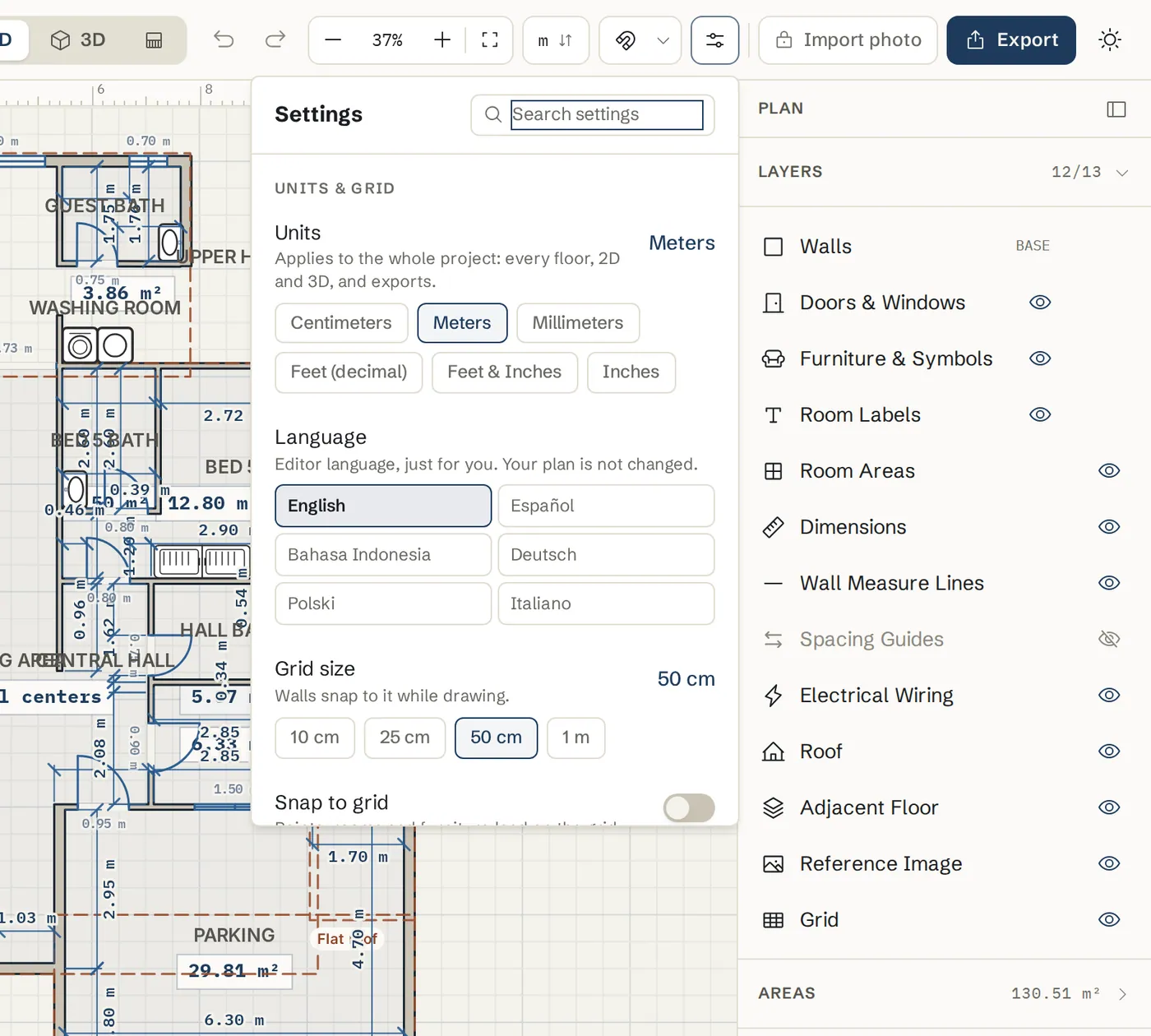
Click Settings in the top bar. The first section, Units & grid, has the same Units choice.
Type lengths in any format
Any length field, and the size you type while drawing, accepts these formats.
Type a bare number
A number on its own is read in the plan unit: 300 means 300 cm in a centimeter plan, 3 means 3 m in a meter plan. In a Feet & Inches plan a bare number is feet, so 12 means 12 feet.
Type feet and inches
In a Feet & Inches plan, 5 6 means 5' 6". You can also type 5' 6", 5ft 6in, 5'-6" or fractions like 5' 6 1/2".
Type another unit on purpose
Add the unit and it wins over the plan unit: 3.5 m, 150 cm, 1500 mm, 6 in or 10 ft all work in any plan. A decimal comma, like 2,5 m, works too.
Areas
Read room areas
Metric plans show areas in m². Imperial plans show them in ft². The Areas panel on the right and the area schedule in exports follow the same rule.
Tips
- Measured your rooms in inches? Pick Feet & Inches first, then type the sizes exactly as you wrote them down.
- Exports print sizes in the same unit as the plan, so pick the unit your builder or landlord uses before exporting.
- Units are saved with the plan. Another plan can use different units.
- Signed in users choose the units when they create a plan in the New floor plan dialog, and can change them later in the editor.
Common problems
- I typed 12 and got 12 feet, but I meant 12 inches
- In a Feet & Inches plan a bare number means feet. Type 12 in, or 12", for inches.
- The sizes are in feet but I use metres
- Click the units button in the top bar and pick Meters or Centimeters. Nothing on the plan moves or changes size.
- My wall is a little shorter than the size I typed
- The number describes one face of the wall. Check Measured from in Settings under Dimensions: Inner face measures inside the room, Outer face the outside, Centre the middle of the wall. See Dimensions.
- Areas show in ft² but I want m²
- Areas follow the units. Switch the plan to a metric unit and areas change to m².
Related topics
- Dimensions & measuringWall lengths on the plan, which face they measure, typing a length, and extra dimension lines.
- Grid and snappingMake points land on the grid or on other walls, keep walls square, or place things freely.
- Areas & area scheduleNet room areas, gross floor area per floor and building totals, on the plan, in the Areas panel and in exports.
- Getting startedOpen the editor, learn what is where on the screen and draw your first room in a few minutes.
- LanguagesUse SpacePlanner in English, Español, Bahasa Indonesia, Deutsch, Polski or Italiano.
Planning a whole project?
Try it on a real plan
Free, in your browser. No sign-up needed to start.